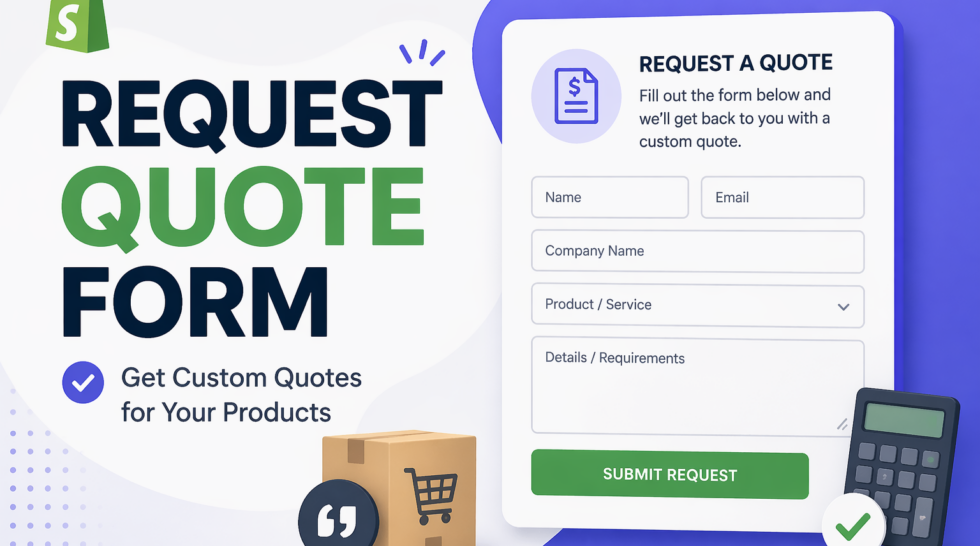
If you sell to businesses, you already know that a fixed price tag rarely tells the whole story. Bulk orders, custom requirements, long-term contracts — all of these call for a conversation, not a checkout button. That’s exactly what Huskify – Request for Quote is built for.
In this guide, you’ll learn how to configure your quote request form step by step: choose a layout, add the right fields, enable smart validation, and control exactly what customers see before and after they submit a quote. No coding required.
Table of Contents
- Why Shopify B2B stores need a quote request form
- Hide your prices and show a “Request a Quote” button
- Choose a 1-column or 2-column form layout
- Add the right field types to your form
- Keep your data clean with built-in form validation
- Collect international phone numbers with country code support
- Show your form in a modal or on a dedicated page
- What happens after a customer submits a quote
- Frequently asked questions
Why Shopify B2B Stores Need a Quote Request Form
B2B buyers don’t shop like retail customers. They compare vendors, negotiate pricing, and often need to get internal approval before committing to a purchase. A standard “Add to Cart” flow loses these buyers before the conversation even starts.
A quote request form solves this by:
- Letting you hide prices from the public and engage buyers directly
- Capturing lead details (company name, quantity, delivery requirements) upfront
- Giving your sales team the context they need to respond with a competitive offer
- Building trust — buyers feel heard, not pushed through a generic checkout
Huskify adds all of this to your Shopify store without touching your theme code.
Hide Your Prices and Show a “Request a Quote” Button
Before anything else, you’ll want to replace the price and “Add to Cart” button with a clean call-to-action. In Huskify, you can hide the product price and display a “Request a Quote” button on any product — or across your entire catalog.
This works especially well for:
- Products with variable pricing based on quantity or configuration
- Wholesale or trade-only catalogs
- High-ticket items where price anchoring can hurt conversion
Once a customer clicks the button, your quote form appears — either as a modal overlay or on a dedicated page (more on this in Section 7).
Choose a 1-Column or 2-Column Quote Page Layout
Huskify gives you two page layout options for how the quote request experience is structured. Think of it like choosing between a simple form page and Shopify’s native checkout layout — pick the one that best fits your store’s workflow.
1-Column layout
Everything is stacked in a single column: the quoted items (products the customer is requesting) are listed first, followed by the form fields below. This layout is straightforward, works great on mobile, and suits stores where customers typically request one or two products at a time.
Use the 1-column layout when:
- Most of your visitors are on mobile devices
- Your quote requests usually involve a small number of items
- You want a clean, distraction-free experience with a clear top-to-bottom flow
2-Column layout
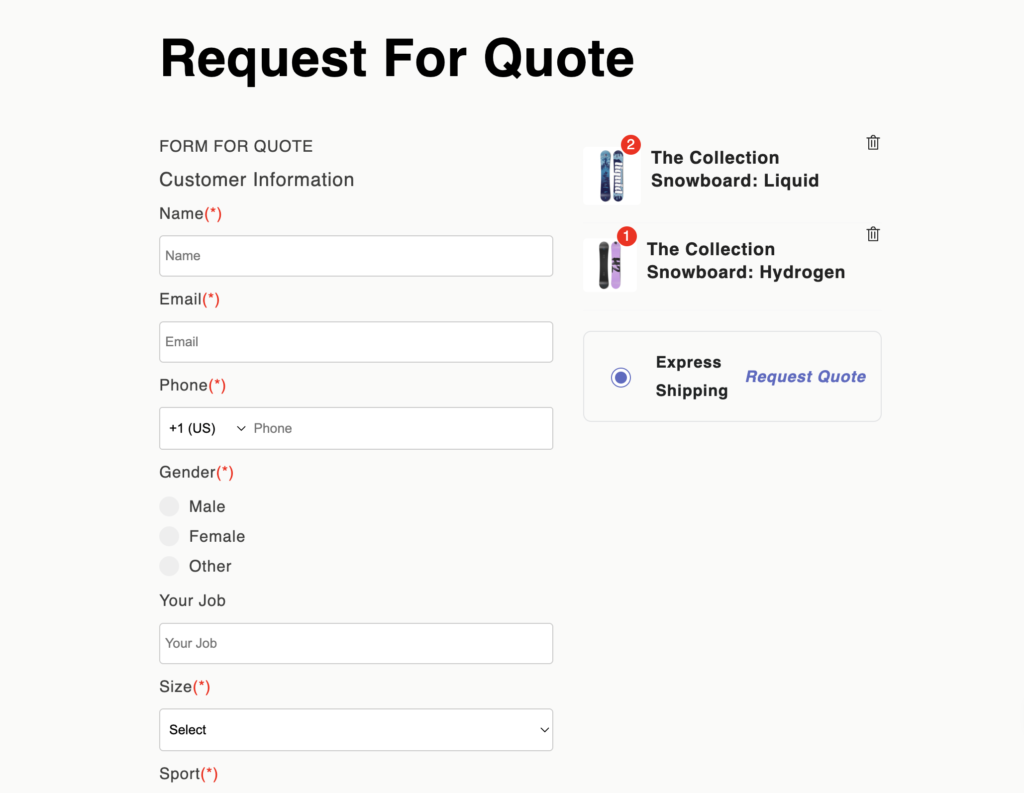
This layout mirrors the familiar Shopify checkout page experience. The form fields appear on the left and the quoted items are shown on the right as an order summary. Customers can review exactly what they’re requesting while filling in their details — all in one view, without scrolling.
Use the 2-column layout when:
- Your customers often request multiple products in a single quote
- You want to reinforce the items being quoted while the customer fills in their details
- Your store is desktop-first and you want a polished, professional feel that matches the Shopify checkout experience buyers already know
Tip: The 2-column layout is the go-to choice for most B2B stores. It closely resembles a checkout page, which gives wholesale buyers a familiar and trustworthy experience.
Add the Right Field Types to Your Form
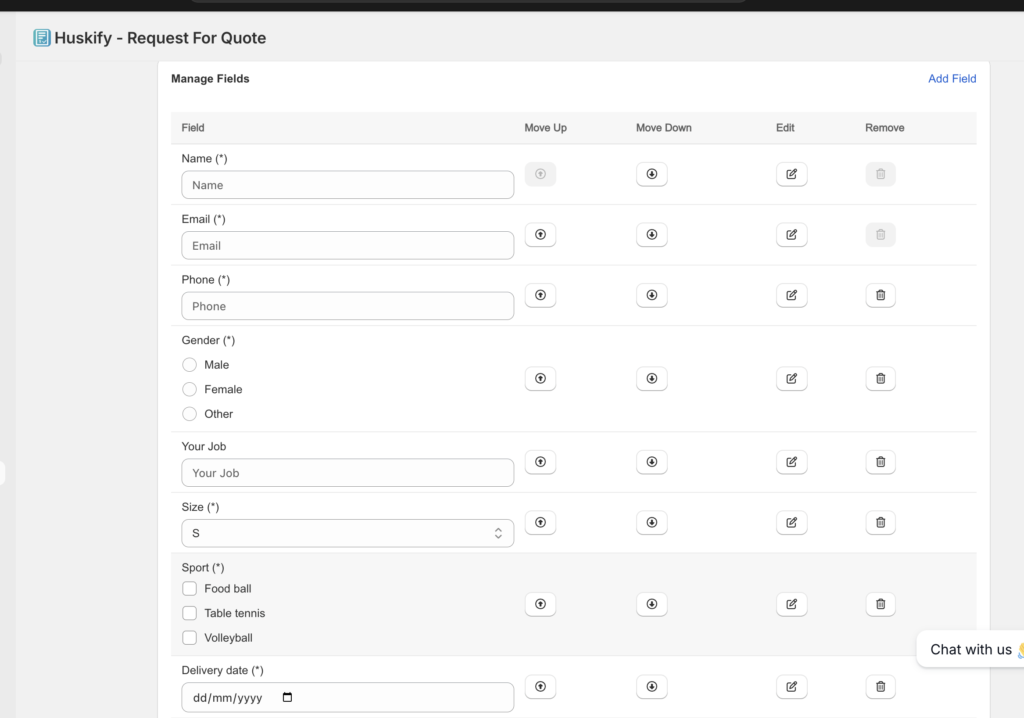
A good quote form collects exactly what your sales team needs — nothing more, nothing less. Huskify supports a wide range of field types so you can build forms tailored to your product and workflow.
Available field types
Text
A single-line input. Use this for short answers like company name, job title, or city.
Textarea
A multi-line input for longer responses. Ideal for “special requirements,” “project description,” or any field where customers need space to explain themselves.
Dropdown
A select menu with predefined options. Great for product category, preferred delivery method, or budget range — anywhere you want to control the possible answers.
Checkbox
Lets customers select one or more options from a list. Use it for add-on services, features, or multiple product variants.
Radio button
Like a checkbox group, but the customer can only pick one option. Works well for mutually exclusive choices: “Standard” vs “Express” shipping, or “New customer” vs “Returning customer.”
Date picker
Displays a calendar widget. Use it to capture a requested delivery date, project start date, or quote expiry preference.
A text field pre-configured for email input. Automatically validates format on submission.
Phone number
A phone input with a built-in country code selector. See Section 6 for details.
Best practice: Keep your form focused. 5–8 fields is usually the sweet spot for B2B quote forms. The more fields you add, the lower your submission rate — so only ask for information your team will actually use.
Keep Your Data Clean with Built-In Form Validation
Nothing slows down your sales process like incomplete or incorrect lead data. Huskify validates fields automatically before a quote is submitted, so every entry your team receives is usable.
Required fields
Mark any field as required in the Field Settings panel. If a customer tries to submit without filling it in, the form highlights the missing field and prevents submission until it’s completed.
Email format validation
Email fields automatically check that the input follows a valid format (e.g. [email protected]). Typos like “name@companycom” or “namecompany.com” are caught before the form goes through.
Phone number validation
Phone fields validate the number against the format expected for the selected country code. A US number with too few digits, for example, will be flagged before submission.
All validation messages are shown inline, directly below the relevant field, so customers know exactly what to fix without reloading the page.
Collect International Phone Numbers with Country Code Support
If you sell internationally, a plain phone number field isn’t enough. Without a country code, your team has no way to call back a lead from an unfamiliar number.
Huskify’s phone field includes a built-in country code selector. When customers fill in their phone number, they first choose their country from a searchable dropdown — the correct dialing code is added automatically.
You can set a default country code under Field Settings → Default country to pre-select the country that matches your primary customer base. This reduces friction for your most common buyers while still giving international customers the flexibility to change it.
Show Your Form in a Modal or on a Dedicated Page
Huskify gives you two options for how the quote form appears when a customer clicks the “Request a Quote” button. You can change this at any time under Form Settings → Display mode.
Modal (overlay)
The form opens as a popup on top of the current page. The customer never leaves the product page, which keeps them in context — they can still see the product name and details while filling in the form.
This works best for:
- Short forms (5 fields or fewer)
- Stores where product context is important during the request
- Mobile-first stores where navigation adds friction
Dedicated quote page
Clicking the button redirects the customer to a standalone page (e.g. /pages/request-a-quote). The form takes up the full page width, which gives more breathing room for longer forms.
This works best for:
- Longer forms with 6 or more fields
- Stores that want a shareable, bookmarkable URL for the quote page
- Cases where the form is also linked from a navigation menu or landing page
What Happens After a Customer Submits a Quote
The moment a customer hits “Submit,” you have a chance to set expectations and build confidence. Huskify gives you two options for what they see next, configurable under Form Settings → After submission.
Show a confirmation message
Display a custom thank-you message on the same page immediately after submission. You write the message — for example: “Thanks for your request! Our team will get back to you within 24 hours.”
This is the fastest, lowest-friction option. No redirect, no page load — just instant confirmation.
Redirect to quote detail page
After submitting, the customer is taken to a dedicated page showing their quote details and current status. They can see exactly what they requested and track whether your team has responded.
This approach works especially well for B2B buyers who need to share the quote with colleagues or get internal sign-off before moving forward. It also reduces follow-up emails asking “Did you receive my request?”
Recommendation: For most B2B stores, redirecting to the quote detail page builds more trust and reduces support volume. Use the confirmation message approach if your form is very high-volume and speed is the priority.
Frequently Asked Questions
Can I hide prices on only some products, not all?
Yes. Huskify lets you choose which products show the “Request a Quote” button. You can apply it to specific products, collections, or your entire catalog — whichever fits your pricing strategy.
Can customers still add products to their cart while the quote form is active?
You control this. Huskify allows you to hide the “Add to Cart” button alongside the price, or keep it visible so customers can choose between buying directly and requesting a quote.
How many fields can I add to my quote form?
There is no hard limit on the number of fields. That said, we recommend keeping forms to 8 fields or fewer for the best submission rates. You can always ask for additional information in your follow-up email once a quote request comes in.
Does the quote form work on mobile devices?
Yes. Both the 1-column and 2-column layouts are fully responsive.
Is Huskify compatible with all Shopify themes?
Huskify is designed to work with all published Shopify themes, including Online Store 2.0 themes. If you run into any display issues with a custom theme, our support team can help you get it set up correctly.
Ready to Start Collecting Quote Requests?
Setting up your first quote form takes less than 10 minutes. Install Huskify – Request for Quote from the Shopify App Store, configure your form layout and fields, and start converting B2B visitors into qualified leads today.