

If you’re running a Shopify store and want customers to request pricing instead of buying instantly, this guide will walk you through a simple method — perfect for non-technical users.
1. 🤔 Why Do You Need a “Request a Quote” Feature?
Not every product should have a fixed price or instant checkout. A Request a Quote (RFQ) feature is useful when:
- 💼 You sell custom or made-to-order products
- 📦 You offer bulk pricing or wholesale
- 🚚 Shipping cost needs to be calculated manually
- 🎯 You want to negotiate pricing with customers
- 🔒 You prefer to hide prices from competitors
Instead of “Add to Cart”, customers click Request a Quote, and you can respond with a personalized offer.
2. 🛠️ Add “Request a Quote” Button to Product Page
This method is simple: we replace the default buy buttons with a custom button linking to your contact page.
Step 1: Create a “Quote Product” Template
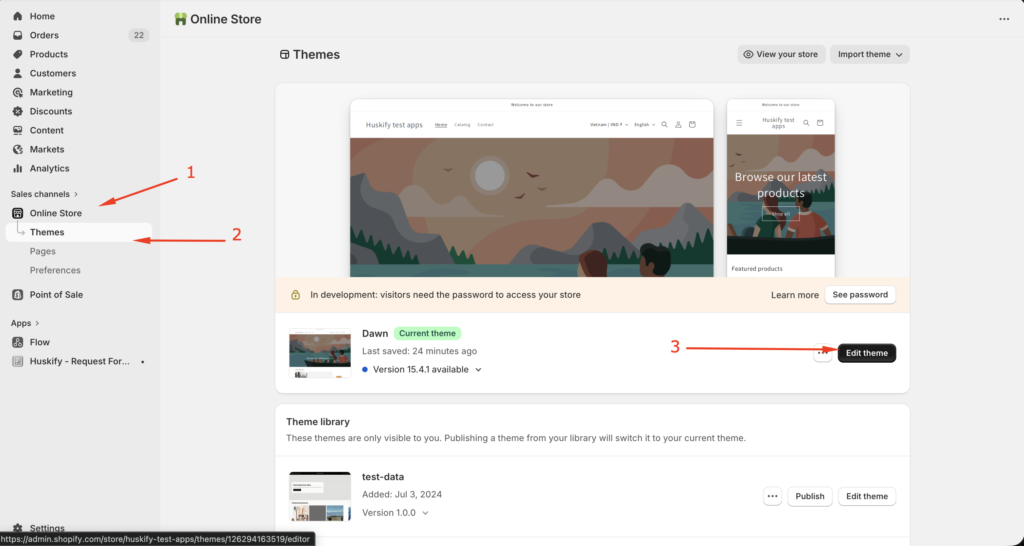
Go To Online Store => Themes => Edit Theme
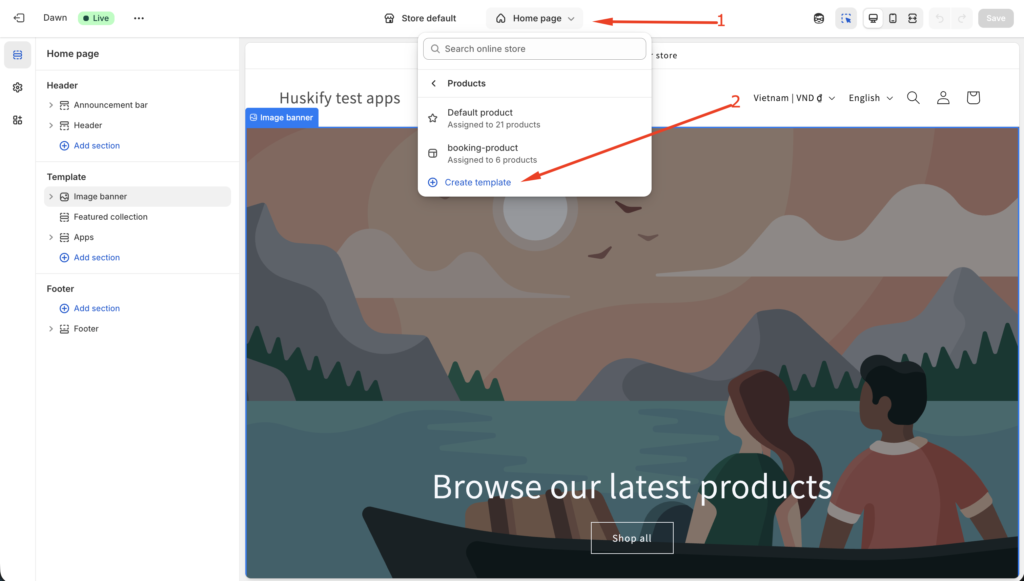
In the Select Page in the header bar. Select Product => Create Template
In the popup form, Enter template name and click to “Create Template” button.
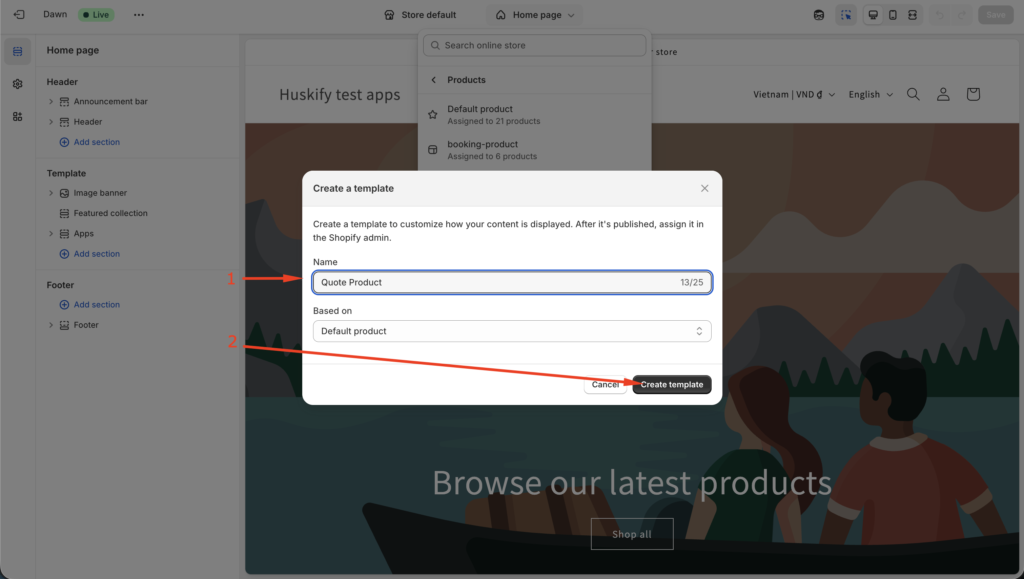
👉 This allows you to apply RFQ only to specific products.
Step 2: Hide “Add to Cart” and “Buy Now” Buttons
Inside the theme editor:
- Find Product Information section
- Hide or remove:
- Add to Cart button
- Buy Now button
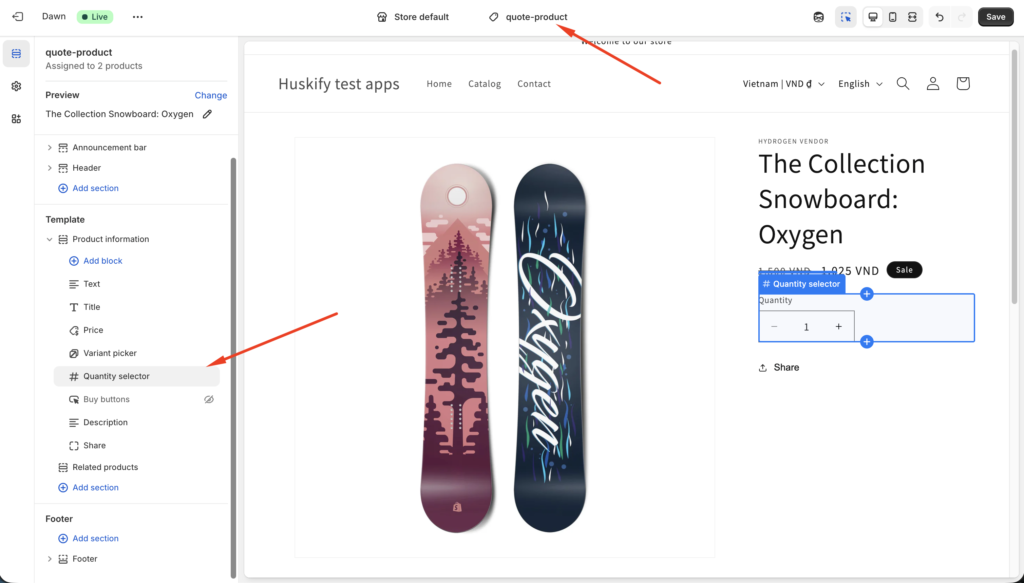
👉 Now customers cannot directly purchase this product.
Step 3: Add “Request a Quote” Button
Go To Products => Quote-product template
You can easily generate code using tools like ChatGPT or copy this simple HTML:
<a href="/pages/contact" class="request-quote-btn">
  Request a Quote
</a>

<style>
.request-quote-btn {
  display: inline-block;
  padding: 12px 20px;
  background-color: #000;
  color: #fff;
  text-decoration: none;
  border-radius: 6px;
  font-weight: bold;
}
.request-quote-btn:hover {
  background-color: #333;
}
</style>
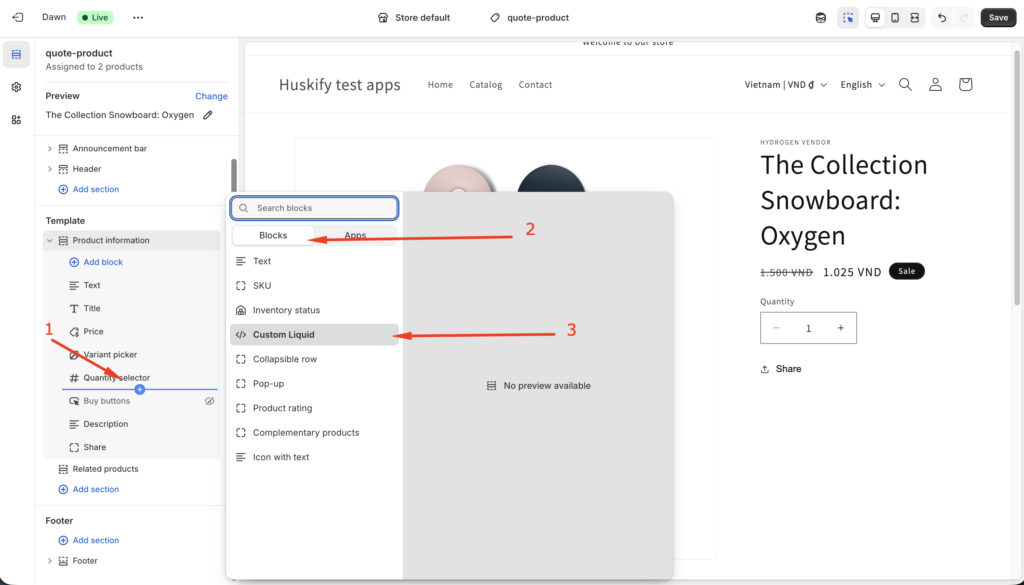
In the Product page => Product Information Click to Add Block => Blocks => Custom Liquid
Add the html quote button to Custom liquid and Save
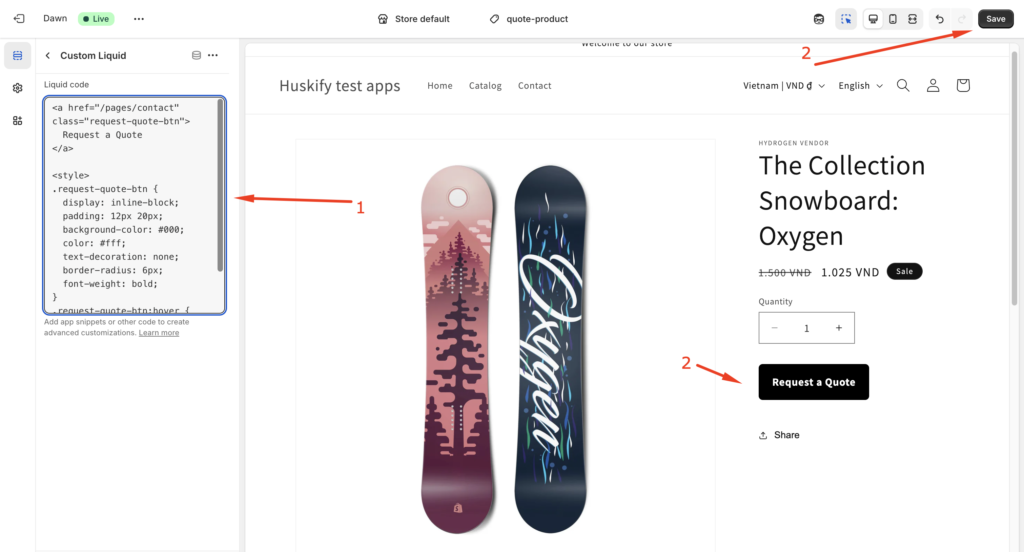
👉 Add this inside a Custom Liquid block in your product template.
Step 4: Assign Template to Product
- Go to Products
- Select your product
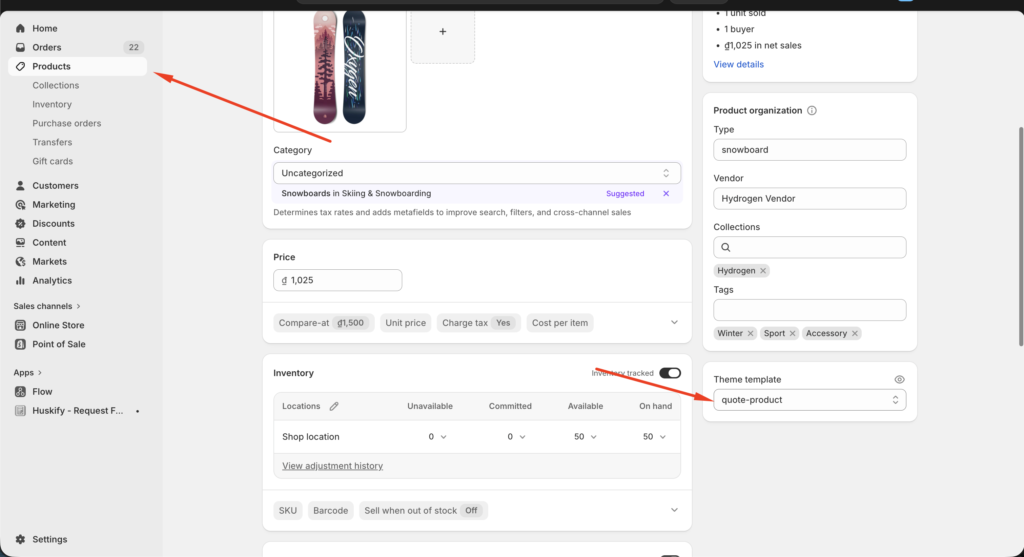
- In Theme template, choose:
quote-product - Save
When access the product with quote template, You can see the Request quote button.
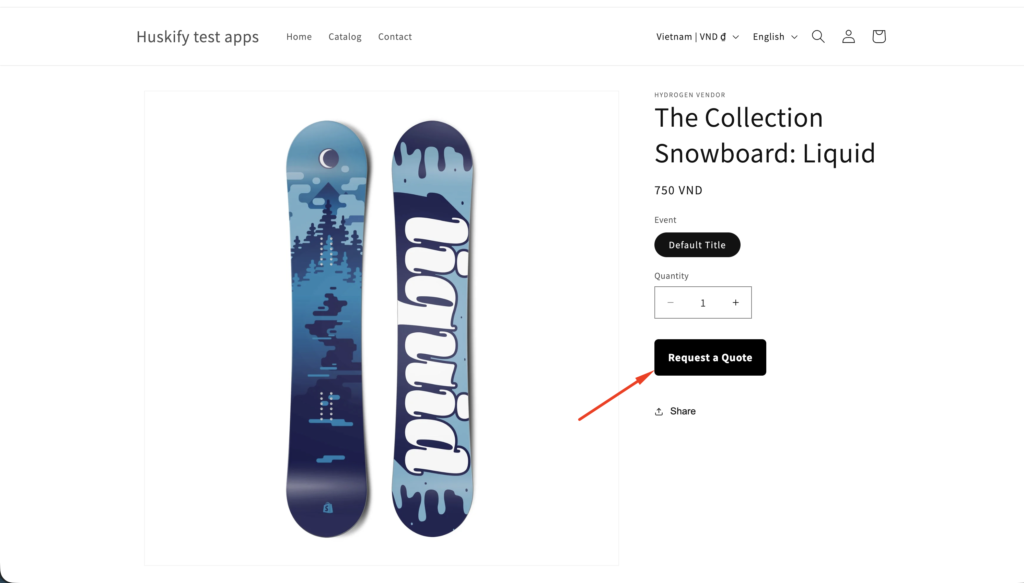
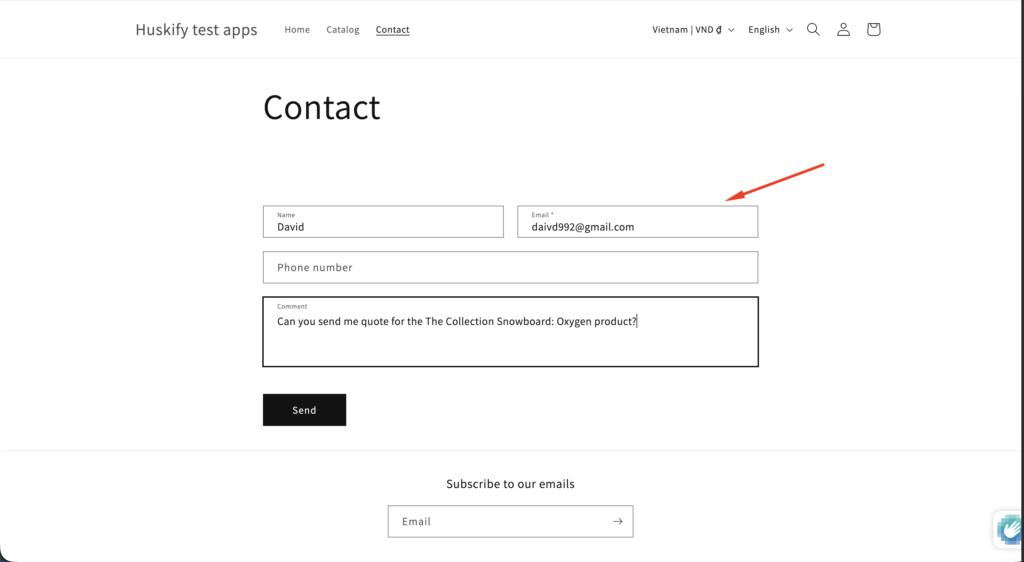
When click to the button, You will go to contact page.
3. ⚖️ Advantages & Disadvantages of This Method
✅ Advantages
- ✔️ Very easy to implement (no coding skills needed)
- ✔️ Works with any Shopify theme
- ✔️ Quick setup (under 10 minutes)
- ✔️ Good for simple RFQ use cases
❌ Disadvantages
- ❌ No structured quote form (just a contact page)
- ❌ No product details automatically included
- ❌ No file upload or customization options
- ❌ No quote tracking or management
- ❌ Manual process (email back-and-forth)
👉 This method is great for beginners, but limited for growing businesses.
4. 🚀 Upgrade with Huskify – Request for Quote
If you want a professional RFQ system, consider using:
👉 Huskify – Request for Quote
💡 What it can do:
- 📩 Let customers send quote requests directly from product pages
- 📝 Custom form builder (add fields, file uploads, options)
- 🔄 Convert quotes into draft orders
- 📊 Manage all quotes in one dashboard
- 📧 Send automatic email notifications
Perfect for:
- Wholesale stores
- B2B businesses
- Custom product sellers
Final Tip
If you’re just starting → use the simple button method
If you want to scale → switch to a full RFQ app like Huskify